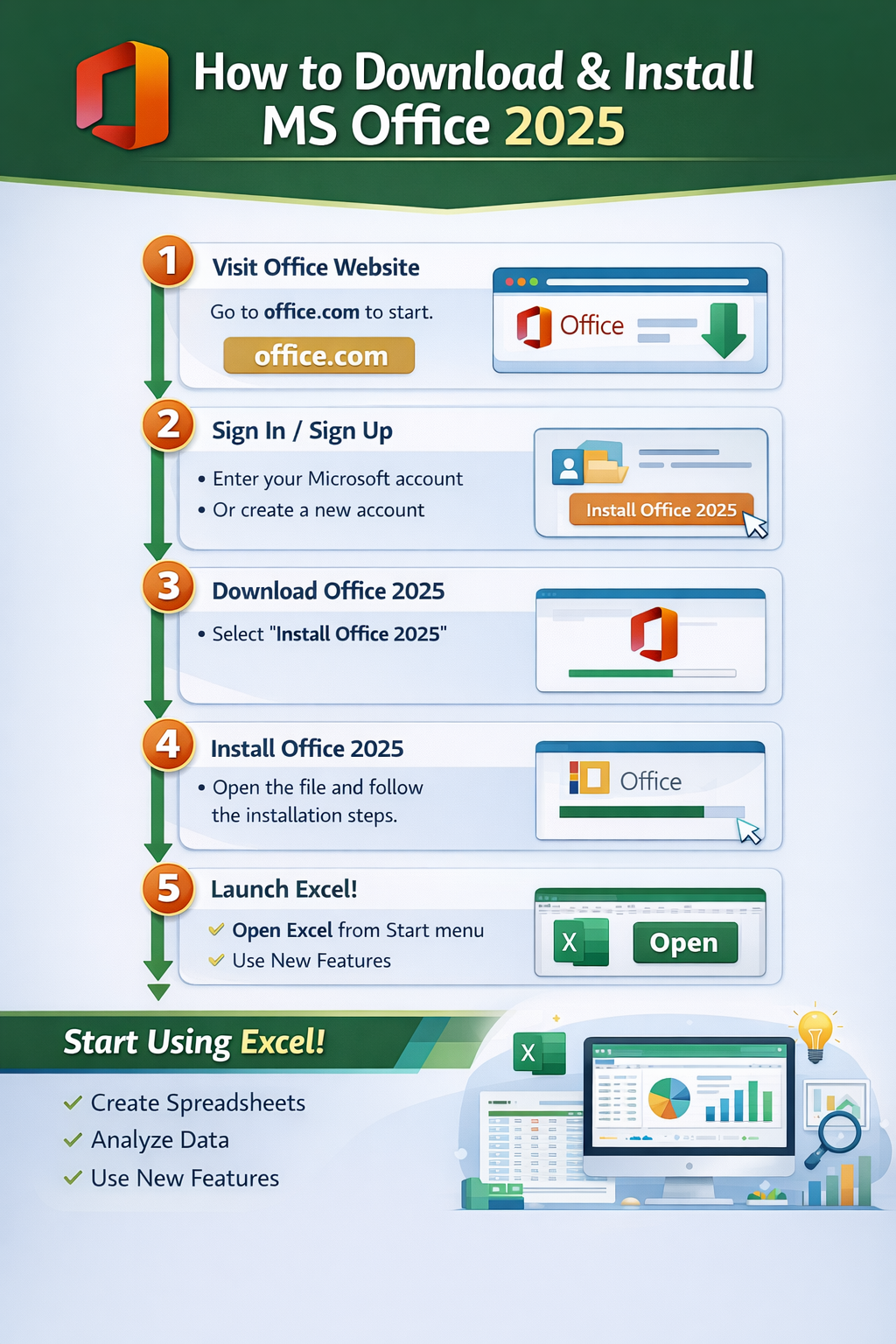




Excel Shortcut Keys and Uses – Learn Excel shortcut keys and uses in Hindi. जानिए Excel क्या है, Excel के uses, features, functions और important shortcut keys जो office work और data entry job को आसान बनाते हैं।
Table of Contents
📘 Excel क्या है? (What is Microsoft Excel)
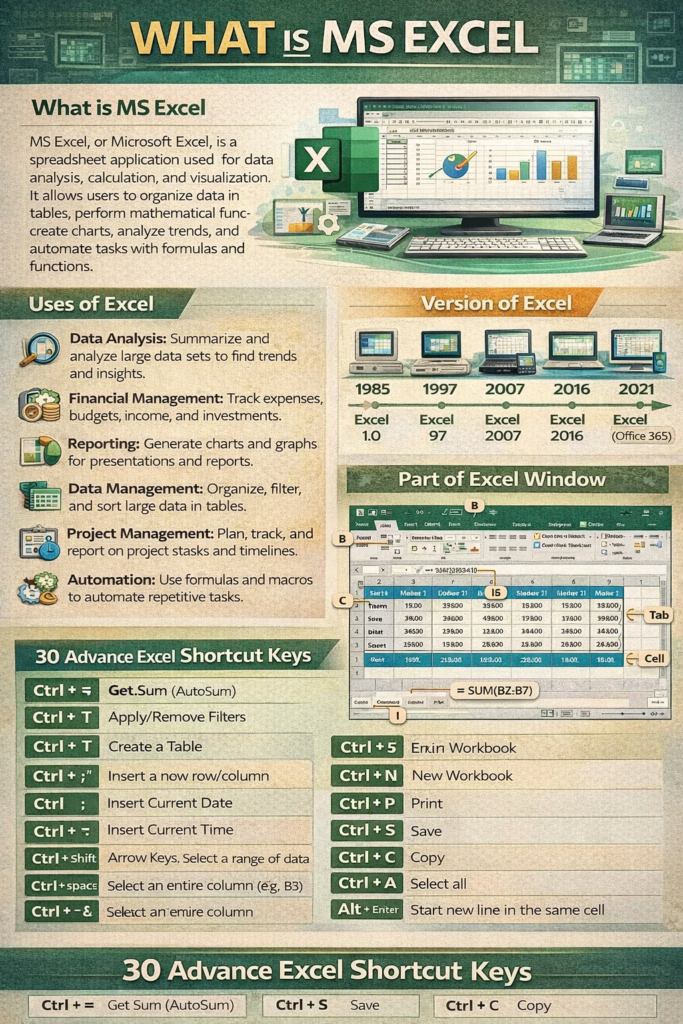
Microsoft Excel एक spreadsheet software है, जिसे Microsoft ने develop किया है। Excel का उपयोग data entry, calculation, analysis, reporting और data management के लिए किया जाता है।
यह rows (पंक्तियाँ) और columns (स्तंभ) में data को organize करता है, जिससे काम तेज़, आसान और error-free हो जाता है।
Excel आज लगभग हर office, bank, school, college, business और government office में इस्तेमाल होता है।
🎯 Excel के Uses (Uses of Excel)
Excel का उपयोग कई तरह के कामों में किया जाता है:
- 📊 Data Entry और Data Management
- 🧮 Calculation (Math, Financial, Statistical)
- 📈 Charts और Graphs बनाना
- 🧾 Billing, Invoice और Salary Sheet
- 🏦 Accounting और Banking Work
- 🎓 Student Result, Attendance और Fees Record
- 🏢 Office Reports और MIS Reports
👉 Data Entry Job में Excel सबसे ज़्यादा इस्तेमाल होने वाला tool है।
⚙️ Functions of Excel (Excel के प्रमुख Functions)
Excel में पहले से बने हुए कई functions होते हैं, जो calculation को आसान बनाते हैं:
- SUM() – Total जोड़ने के लिए
- AVERAGE() – औसत निकालने के लिए
- COUNT() / COUNTA() – Cells की गिनती के लिए
- MAX() / MIN() – सबसे बड़ा/छोटा मान निकालने के लिए
- IF() – Condition के आधार पर result पाने के लिए
- VLOOKUP() / XLOOKUP() – Data search करने के लिए
इन functions से manual calculation की ज़रूरत नहीं पड़ती और time बचता है।
⭐ Features of Excel (Excel की मुख्य विशेषताएँ)
Excel को powerful बनाने वाली कुछ खास features:
- ✔ Large Data Handling
- ✔ Easy Calculation with Formulas
- ✔ Charts & Graphs Support
- ✔ Sorting & Filtering
- ✔ Data Validation
- ✔ Pivot Table & Pivot Chart
- ✔ Conditional Formatting
इन features की वजह से Excel office automation का सबसे important tool बन गया है।
⌨️ Important Excel Shortcut Keys (Excel के महत्वपूर्ण Shortcut Keys)
नीचे दिए गए shortcut keys office work और data entry job को तेज़ और आसान बनाते हैं:
🔹 Excel Shortcut Keys and Uses
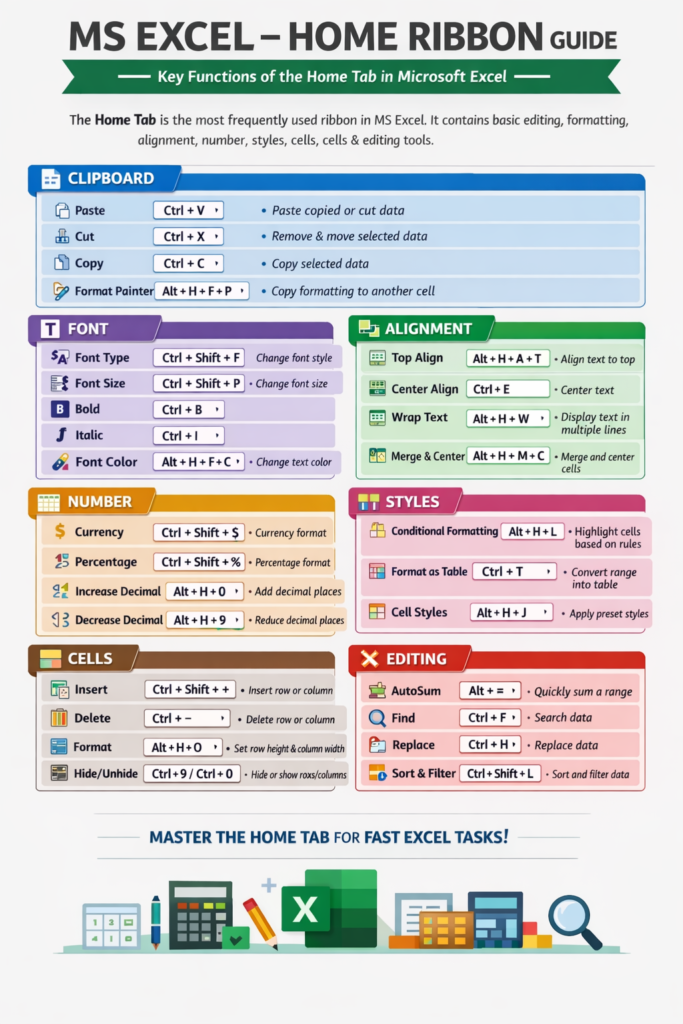
Ctrl + N – New Workbook
Ctrl + O – Open Workbook
Ctrl + S – Save File
Ctrl + P – Print
🔹 Editing Shortcut Keys
Ctrl + C – Copy
Ctrl + X – Cut
Ctrl + V – Paste
Ctrl + Z – Undo
Ctrl + Y – Redo
🔹 Data Entry & Formatting
Ctrl + B – Bold
Ctrl + I – Italic
Ctrl + U – Underline
Ctrl + 1 – Format Cells
Alt + Enter – Cell के अंदर नई line
🔹 Navigation Shortcut Keys
Ctrl + Arrow Key – Fast navigation
Ctrl + Home – First cell (A1)
Ctrl + End – Last used cell
🔹 Formula Shortcut Keys
= – Formula start करने के लिए
Alt + = – AutoSum
F2 – Cell edit mode
👉 Shortcut keys का regular use करने से work speed 2x हो जाती है।
🏢 Office & Job में Excel क्यों ज़रूरी है?
आज लगभग हर job profile में Excel की basic knowledge ज़रूरी है:
- Data Entry Operator
- Office Assistant
- Accountant
- Bank Clerk
- MIS Executive
- Computer Operator
अगर आपको Excel shortcut keys और functions अच्छे से आते हैं, तो job पाने के chances बढ़ जाते हैं।
नीचे 100 Computer Keyboard Shortcut Keys दिए गए हैं, जो Computer Basic, Office Work, Data Entry, CCC & Competitive Exams के लिए बहुत उपयोगी हैं 👇
🔹 Basic Keyboard Shortcut Keys (1–20)
- Ctrl + A – Select All
- Ctrl + B – Bold
- Ctrl + C – Copy
- Ctrl + D – Delete
- Ctrl + E – Center Align
- Ctrl + F – Find
- Ctrl + G – Go To
- Ctrl + H – Replace
- Ctrl + I – Italic
- Ctrl + J – Justify
- Ctrl + K – Insert Hyperlink
- Ctrl + L – Left Align
- Ctrl + M – Increase Indent
- Ctrl + N – New File
- Ctrl + O – Open File
- Ctrl + P – Print
- Ctrl + Q – Clear Formatting
- Ctrl + R – Right Align
- Ctrl + S – Save
- Ctrl + T – New Tab
🔹 Editing Shortcut Keys (21–40)
- Ctrl + U – Underline
- Ctrl + V – Paste
- Ctrl + W – Close Window
- Ctrl + X – Cut
- Ctrl + Y – Redo
- Ctrl + Z – Undo
- Ctrl + Backspace – Delete Word
- Ctrl + Delete – Delete Next Word
- Ctrl + Enter – Page Break
- Ctrl + Shift + > – Increase Font Size
- Ctrl + Shift + < – Decrease Font Size
- Shift + Delete – Permanent Delete
- Shift + Insert – Paste
- Shift + Arrow Key – Select Text
- Ctrl + Shift + N – New Folder
- Ctrl + Shift + Esc – Task Manager
- Ctrl + Tab – Switch Tabs
- Ctrl + Shift + Tab – Previous Tab
- Ctrl + Esc – Start Menu
- Ctrl + Mouse Scroll – Zoom In/Out
🔹 Navigation Shortcut Keys (41–60)
- Home – Line Start
- End – Line End
- Ctrl + Home – Document Start
- Ctrl + End – Document End
- Page Up – One Page Up
- Page Down – One Page Down
- Alt + Tab – Switch Applications
- Alt + F4 – Close Program
- Alt + Enter – Properties
- Alt + Space – Window Menu
- F1 – Help
- F2 – Rename
- F3 – Search
- F5 – Refresh
- F7 – Spelling Check
- F8 – Boot Menu
- F11 – Full Screen
- Esc – Cancel
- Tab – Next Field
- Shift + Tab – Previous Field
🔹 Windows Shortcut Keys (61–80)
- Windows + D – Show Desktop
- Windows + E – File Explorer
- Windows + L – Lock PC
- Windows + R – Run Dialog
- Windows + I – Settings
- Windows + S – Search
- Windows + M – Minimize All
- Windows + Shift + M – Restore Minimized
- Windows + Tab – Task View
- Windows + P – Project Screen
- Windows + K – Connect Device
- Windows + U – Ease of Access
- Windows + X – Power Menu
- Windows + V – Clipboard History
- Windows + . – Emoji Panel
- Windows + + – Magnifier Zoom In
- Windows + – – Magnifier Zoom Out
- Windows + PrintScreen – Screenshot Save
- PrintScreen – Screenshot Copy
- Alt + PrintScreen – Active Window Screenshot
🔹 Advanced / Office Shortcut Keys (81–100)
- Ctrl + F1 – Hide/Show Ribbon
- Ctrl + Shift + C – Copy Formatting
- Ctrl + Shift + V – Paste Without Formatting
- Ctrl + Alt + Delete – Security Screen
- Ctrl + Shift + Arrow – Select Data Range
- Alt + = – AutoSum (Excel)
- Ctrl + 1 – Format Cells
- Ctrl + ; – Current Date
- Ctrl + Shift + ; – Current Time
- Ctrl + Space – Select Column
- Shift + Space – Select Row
- Ctrl + Page Up – Previous Sheet
- Ctrl + Page Down – Next Sheet
- Ctrl + Alt + V – Paste Special
- Ctrl + Shift + L – Filter On/Off
- Ctrl + Alt + Arrow – Rotate Screen
- Alt + F – File Menu
- Alt + H – Home Tab
- Alt + N – Insert Tab
- Alt + W – View Tab
✅ Exam Tip (CCC / Computer Exam)
👉 20–30 shortcut keys से हर exam में 2–5 questions जरूर आते हैं।
👉 Office job & data entry में shortcut keys speed double कर देती हैं।
🔚 Conclusion
Microsoft Excel एक powerful और जरूरी software है।
अगर आप Excel ke uses, functions, features और shortcut keys सीख लेते हैं, तो office work, data entry job और competitive exams में आपको बड़ा फायदा मिलेगा।
👉 Excel सीखना आज के समय में skill + career growth दोनों के लिए ज़रूरी है।