





Real Office Case-Study Examples ke saath (Complete Blog)
🔰 Introduction (परिचय)
Aaj ke time mein Advanced Excel functions sirf ek software skill nahi, balki office productivity ka backbone ban chuka hai।
Chahe aap HR, Accounts, Sales, MIS, Data Entry ya Management mein kaam kar rahe ho – Advanced Excel functions aapka kaam fast, accurate aur professional bana dete hain।
Is blog mein aap sikhenge:
- Advanced Excel Functions kya hote hain
- Office mein inka real use
- Category-wise explanation
- Real Office Case-Study Examples with formulas
Table of Contents
📌 Advanced Excel Functions kya hote hain?
Advanced Excel functions wo formulas hote hain jo basic SUM, AVERAGE, COUNT se aage jaakar kaam karte hain।
Ye help karte hain:
- Conditions ke basis par calculation
- Automatic reports
- Dynamic dashboards
- Financial analysis
- Error-free decision making
Examples:
XLOOKUP, SUMIFS, IFERROR, FILTER, PMT, INDEX+MATCH, LET, LAMBDA
Below is a complete, structured list of 100 Advanced Excel formulas & functions with Syntax, Uses, Detailed Description, and Example, presented in a clean tabular format.
This is ideal for advanced Excel learners, competitive exams (CCC, UPSSSC, Lekhpal), office users, MIS, Data Analysis, and Power BI base users.
🔷 Advanced Excel Formulas & Functions (100)
🟦 Legend (Example Reference)
Assume sample data:
- A2:A10 → Names
- B2:B10 → Sales
- C2:C10 → Date
- D2:D10 → Region
📊 Table: Advanced Excel Functions
| No. | Function Name | Syntax | Use | Description | Example |
|---|---|---|---|---|---|
| 1 | SUMIFS | SUMIFS(sum_range, criteria_range1, criteria1) | Conditional Sum | Adds values based on multiple conditions | =SUMIFS(B2:B10, D2:D10,"North") |
| 2 | COUNTIFS | COUNTIFS(range1, criteria1) | Conditional Count | Counts cells meeting multiple criteria | =COUNTIFS(D2:D10,"East") |
| 3 | AVERAGEIFS | AVERAGEIFS(avg_range, range, criteria) | Conditional Average | Average based on conditions | =AVERAGEIFS(B2:B10,D2:D10,"West") |
| 4 | IF | IF(logical_test, value_true, value_false) | Decision Making | Returns result based on condition | =IF(B2>50000,"High","Low") |
| 5 | IFS | IFS(condition1,value1,...) | Multiple Conditions | Replaces nested IF | =IFS(B2>60000,"A",B2>40000,"B") |
| 6 | IFERROR | IFERROR(value, value_if_error) | Error Handling | Replaces error with value | =IFERROR(A1/B1,0) |
| 7 | VLOOKUP | VLOOKUP(value,table,col,FALSE) | Vertical Lookup | Finds data vertically | =VLOOKUP(A2,E2:F10,2,FALSE) |
| 8 | HLOOKUP | HLOOKUP(value,table,row,FALSE) | Horizontal Lookup | Finds data horizontally | =HLOOKUP("Sales",A1:D5,2,FALSE) |
| 9 | XLOOKUP | XLOOKUP(value,lookup_array,return_array) | Advanced Lookup | Replaces VLOOKUP | =XLOOKUP(A2,A:A,B:B) |
| 10 | LOOKUP | LOOKUP(value,array) | Lookup | Searches value in range | =LOOKUP(B2,B2:B10) |
| 11 | INDEX | INDEX(array,row,col) | Data Fetch | Returns value by position | =INDEX(B2:B10,3) |
| 12 | MATCH | MATCH(value,array,0) | Position Find | Finds position of value | =MATCH("Ram",A2:A10,0) |
| 13 | INDEX + MATCH | INDEX(range,MATCH()) | Dynamic Lookup | Flexible lookup | =INDEX(B:B,MATCH(A2,A:A,0)) |
| 14 | OFFSET | OFFSET(ref,rows,cols) | Dynamic Range | Returns shifted reference | =SUM(OFFSET(B2,0,0,5)) |
| 15 | INDIRECT | INDIRECT(text_ref) | Text to Reference | Converts text to cell ref | =SUM(INDIRECT("B2:B10")) |
| 16 | CHOOSE | CHOOSE(index,value1,value2) | Selection | Returns value by index | =CHOOSE(2,"Jan","Feb") |
| 17 | TEXT | TEXT(value,format) | Formatting | Formats numbers/dates | =TEXT(C2,"dd-mm-yyyy") |
| 18 | TEXTJOIN | TEXTJOIN(delim,ignore,text1) | Join Text | Combines text with delimiter | =TEXTJOIN(",",TRUE,A2:A5) |
| 19 | CONCAT | CONCAT(text1,text2) | Join Text | Combines text | =CONCAT(A2,"-",D2) |
| 20 | LEFT | LEFT(text,num) | Extract Text | Extracts left characters | =LEFT(A2,4) |
| 21 | RIGHT | RIGHT(text,num) | Extract Text | Extracts right characters | =RIGHT(A2,2) |
| 22 | MID | MID(text,start,num) | Extract Text | Extracts middle text | =MID(A2,2,3) |
| 23 | LEN | LEN(text) | Text Length | Counts characters | =LEN(A2) |
| 24 | TRIM | TRIM(text) | Clean Text | Removes extra spaces | =TRIM(A2) |
| 25 | UPPER | UPPER(text) | Case Change | Converts to uppercase | =UPPER(A2) |
| 26 | LOWER | LOWER(text) | Case Change | Converts to lowercase | =LOWER(A2) |
| 27 | PROPER | PROPER(text) | Case Change | Capitalizes words | =PROPER(A2) |
| 28 | FIND | FIND(find,text) | Text Search | Case-sensitive search | =FIND("a",A2) |
| 29 | SEARCH | SEARCH(find,text) | Text Search | Case-insensitive | =SEARCH("a",A2) |
| 30 | SUBSTITUTE | SUBSTITUTE(text,old,new) | Replace Text | Replaces text | =SUBSTITUTE(A2,"Ltd","") |
🔷 Advanced Excel Functions (31–100) – Part-2
📌 Assumed Sample Data
- A2:A10 → Employee Name
- B2:B10 → Salary
- C2:C10 → Joining Date
- D2:D10 → Department
- E2:E10 → Sales
| No | Function | Syntax | Use | Description | Example |
|---|---|---|---|---|---|
| 31 | AND | AND(logical1,logical2) | Logical Test | Returns TRUE if all conditions true | =AND(B2>30000,E2>5000) |
| 32 | OR | OR(logical1,logical2) | Logical Test | TRUE if any condition true | =OR(D2="HR",D2="IT") |
| 33 | NOT | NOT(logical) | Logical Reverse | Reverses TRUE/FALSE | =NOT(B2>40000) |
| 34 | SWITCH | SWITCH(expr,val1,res1) | Multi-condition | Alternative to nested IF | =SWITCH(D2,"HR",10,"IT",20) |
| 35 | TODAY | TODAY() | Current Date | Returns current date | =TODAY() |
| 36 | NOW | NOW() | Date & Time | Returns current date & time | =NOW() |
| 37 | DATEDIF | DATEDIF(start,end,"y") | Date Difference | Calculates difference | =DATEDIF(C2,TODAY(),"y") |
| 38 | EDATE | EDATE(date,months) | Date Shift | Adds months to date | =EDATE(C2,6) |
| 39 | EOMONTH | EOMONTH(date,months) | Month End | Returns last date of month | =EOMONTH(C2,0) |
| 40 | NETWORKDAYS | NETWORKDAYS(start,end) | Working Days | Counts workdays | =NETWORKDAYS(C2,TODAY()) |
| 41 | PMT | PMT(rate,nper,pv) | Loan EMI | Calculates EMI | =PMT(10%/12,60,500000) |
| 42 | FV | FV(rate,nper,pmt) | Future Value | Calculates future value | =FV(8%/12,60,-5000) |
| 43 | PV | PV(rate,nper,pmt) | Present Value | Calculates present value | =PV(10%/12,36,-10000) |
| 44 | NPV | NPV(rate,value1) | Investment | Calculates NPV | =NPV(10%,E2:E6) |
| 45 | XNPV | XNPV(rate,values,dates) | Irregular NPV | Accurate NPV | =XNPV(10%,E2:E6,C2:C6) |
| 46 | IRR | IRR(values) | Return Rate | Calculates IRR | =IRR(E2:E6) |
| 47 | XIRR | XIRR(values,dates) | Advanced IRR | Irregular cash flow IRR | =XIRR(E2:E6,C2:C6) |
| 48 | ROUND | ROUND(number,digits) | Rounding | Rounds number | =ROUND(B2,2) |
| 49 | ROUNDUP | ROUNDUP(number,digits) | Round Up | Always rounds up | =ROUNDUP(B2,0) |
| 50 | ROUNDDOWN | ROUNDDOWN(number,digits) | Round Down | Always rounds down | =ROUNDDOWN(B2,0) |
| 51 | MOD | MOD(number,divisor) | Remainder | Returns remainder | =MOD(B2,2) |
| 52 | ABS | ABS(number) | Absolute | Removes sign | =ABS(-250) |
| 53 | POWER | POWER(number,power) | Exponent | Raises power | =POWER(5,2) |
| 54 | SQRT | SQRT(number) | Square Root | Returns square root | =SQRT(144) |
| 55 | RANK | RANK(number,ref) | Ranking | Rank in list | =RANK(B2,B2:B10) |
| 56 | LARGE | LARGE(array,k) | Nth Largest | Finds large value | =LARGE(B2:B10,2) |
| 57 | SMALL | SMALL(array,k) | Nth Smallest | Finds small value | =SMALL(B2:B10,1) |
| 58 | MEDIAN | MEDIAN(array) | Central Value | Middle value | =MEDIAN(B2:B10) |
| 59 | PERCENTILE | PERCENTILE(array,k) | Distribution | Percentile value | =PERCENTILE(B2:B10,0.9) |
| 60 | STDEV | STDEV(array) | Variability | Std deviation | =STDEV(B2:B10) |
| 61 | ISNUMBER | ISNUMBER(value) | Validation | Checks number | =ISNUMBER(B2) |
| 62 | ISTEXT | ISTEXT(value) | Validation | Checks text | =ISTEXT(A2) |
| 63 | ISBLANK | ISBLANK(value) | Blank Check | TRUE if empty | =ISBLANK(A2) |
| 64 | ISERROR | ISERROR(value) | Error Check | TRUE if error | =ISERROR(A1/B1) |
| 65 | TYPE | TYPE(value) | Data Type | Returns type code | =TYPE(A2) |
| 66 | FILTER | FILTER(array,include) | Dynamic Filter | Filters data | =FILTER(A2:E10,D2:D10="IT") |
| 67 | SORT | SORT(array) | Sorting | Sorts data | =SORT(B2:B10) |
| 68 | UNIQUE | UNIQUE(array) | Remove Duplicates | Unique values | =UNIQUE(D2:D10) |
| 69 | SEQUENCE | SEQUENCE(rows) | Auto Numbers | Generates sequence | =SEQUENCE(10) |
| 70 | TRANSPOSE | TRANSPOSE(array) | Convert Layout | Rows to columns | =TRANSPOSE(A2:A6) |
| 71 | XMATCH | XMATCH(value,array) | Advanced Match | Replaces MATCH | =XMATCH("HR",D2:D10) |
| 72 | TAKE | TAKE(array,rows) | Extract Rows | Takes rows | =TAKE(A2:E10,5) |
| 73 | DROP | DROP(array,rows) | Remove Rows | Drops rows | =DROP(A2:E10,2) |
| 74 | LET | LET(name,value,calc) | Performance | Stores variable | =LET(x,B2,x*10) |
| 75 | LAMBDA | LAMBDA(x,x+1) | Custom Function | Create own function | =LAMBDA(a,a*2)(5) |
| 76 | DSUM | DSUM(db,field,criteria) | Database Sum | Conditional sum | =DSUM(A1:E10,"Sales",G1:G2) |
| 77 | DCOUNT | DCOUNT(db,field,criteria) | Database Count | Conditional count | =DCOUNT(A1:E10,"Salary",G1:G2) |
| 78 | SUBTOTAL | SUBTOTAL(function,array) | Filtered Calc | Ignores hidden rows | =SUBTOTAL(9,B2:B10) |
| 79 | AGGREGATE | AGGREGATE(func,opt,array) | Advanced Calc | Error ignoring | =AGGREGATE(9,6,B2:B10) |
| 80 | FORMULATEXT | FORMULATEXT(ref) | Formula View | Shows formula | =FORMULATEXT(A1) |
| 81 | CELL | CELL(info,ref) | Cell Info | Returns cell info | =CELL("filename") |
| 82 | INFO | INFO(type) | System Info | Excel info | =INFO("osversion") |
| 83 | ROW | ROW(ref) | Row Number | Returns row | =ROW(A5) |
| 84 | COLUMN | COLUMN(ref) | Column Number | Returns column | =COLUMN(C1) |
| 85 | ADDRESS | ADDRESS(row,col) | Cell Address | Returns address | =ADDRESS(5,3) |
| 86 | OFFSET | OFFSET(ref,row,col) | Dynamic Ref | Shifts reference | =OFFSET(B2,1,0) |
| 87 | HYPERLINK | HYPERLINK(link,text) | Link | Creates link | =HYPERLINK("www.google.com","Google") |
| 88 | WEBSERVICE | WEBSERVICE(url) | API Data | Fetch web data | =WEBSERVICE(url) |
| 89 | CLEAN | CLEAN(text) | Remove Non-print | Cleans data | =CLEAN(A2) |
| 90 | REPT | REPT(text,num) | Repeat Text | Repeats text | =REPT("*",5) |
| 91 | RAND | RAND() | Random Number | 0–1 value | =RAND() |
| 92 | RANDBETWEEN | RANDBETWEEN(min,max) | Random Range | Random integer | =RANDBETWEEN(1,100) |
| 93 | FLOOR | FLOOR(num,significance) | Rounding | Down to multiple | =FLOOR(47,10) |
| 94 | CEILING | CEILING(num,significance) | Rounding | Up to multiple | =CEILING(47,10) |
| 95 | SUMPRODUCT | SUMPRODUCT(array1,array2) | Weighted Sum | Multiplies & sums | =SUMPRODUCT(B2:B10,E2:E10) |
| 96 | MMULT | MMULT(array1,array2) | Matrix | Matrix multiplication | =MMULT(A1:B2,C1:D2) |
| 97 | FREQUENCY | FREQUENCY(data,bins) | Distribution | Frequency table | =FREQUENCY(B2:B10,F2:F5) |
| 98 | TEXTBEFORE | TEXTBEFORE(text,delimiter) | Text Split | Before delimiter | =TEXTBEFORE(A2," ") |
| 99 | TEXTAFTER | TEXTAFTER(text,delimiter) | Text Split | After delimiter | =TEXTAFTER(A2," ") |
| 100 | MAP | MAP(array,LAMBDA) | Array Logic | Apply logic to array | =MAP(B2:B10,LAMBDA(x,x*2)) |
🏢 Office Mein Advanced Excel Itna Important Kyun Hai?
| Department | Excel ka Use |
|---|---|
| HR | Salary, Attendance, Experience |
| Accounts | EMI, GST, Cash Flow |
| Sales | Target vs Achievement |
| Management | MIS & Dashboards |
| Operations | Inventory Control |
👉 Jis employee ko Advanced Excel aata hai, wo kam time mein zyada kaam karta hai.
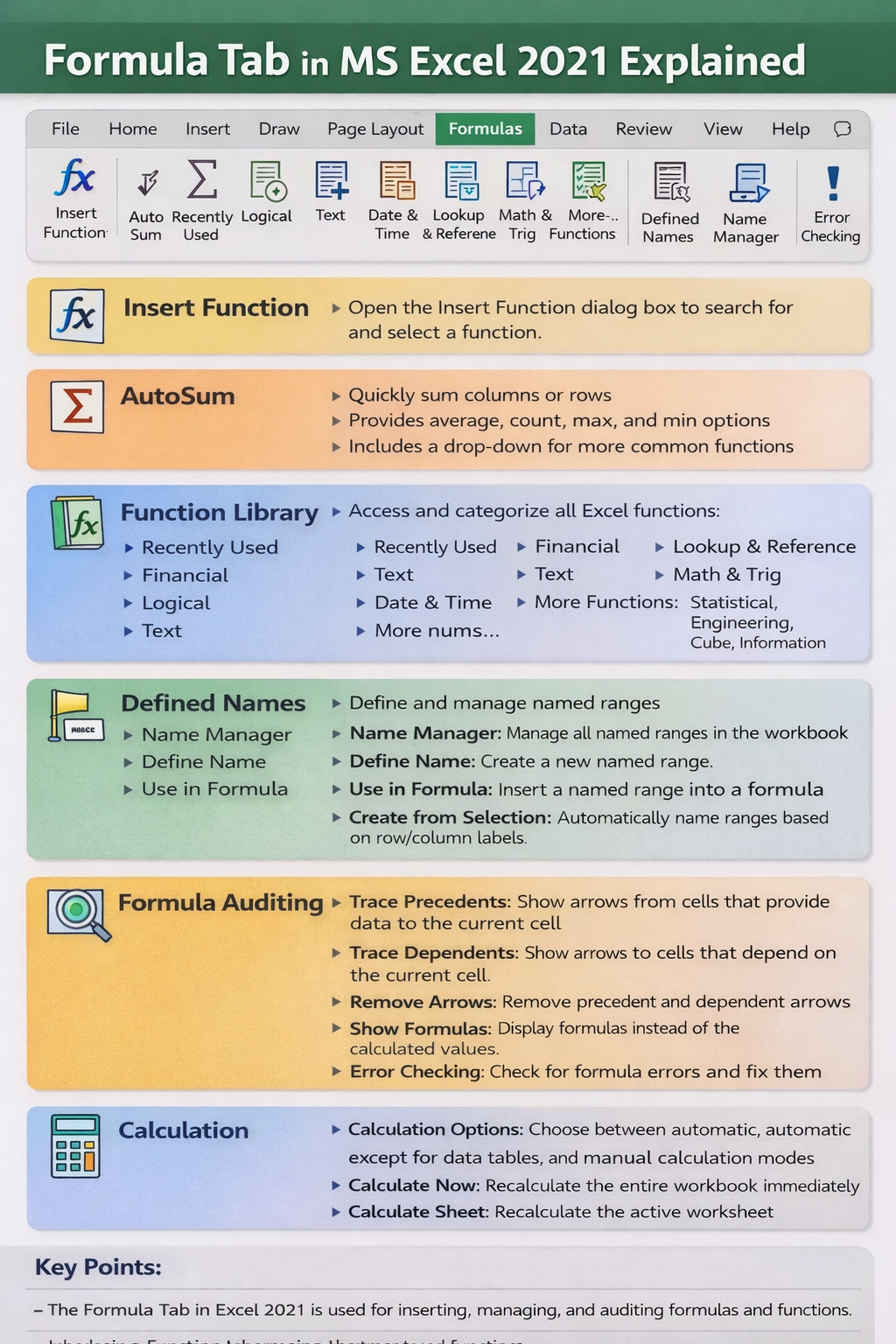
🔹 Category-Wise Advanced Excel Functions
1️⃣ Lookup & Reference Functions
Important Functions
- VLOOKUP
- XLOOKUP
- INDEX
- MATCH
- XMATCH
Office Use
Employee salary, product price, customer record find karna.
✅ Case Study 1: HR Department – Salary Lookup
Problem:
HR ke paas employee code hai, lekin salary alag sheet mein hai.
Solution (XLOOKUP):
=XLOOKUP(A2,Sheet2!A:A,Sheet2!C:C)
Benefit:
- Fast & accurate
- VLOOKUP se better
- Payroll mein zero error
2️⃣ Logical Functions
Important Functions
- IF
- IFS
- AND
- OR
- NOT
- IFERROR
✅ Case Study 2: Performance Rating System
Condition:
- Sales > 1,00,000 → Excellent
- Sales > 50,000 → Good
- Else → Average
=IFS(B2>100000,"Excellent",B2>50000,"Good",TRUE,"Average")
Benefit:
- Clean logic
- Promotion & appraisal ke liye useful
3️⃣ Conditional Calculation Functions
Important Functions
- SUMIFS
- COUNTIFS
- AVERAGEIFS
- SUMPRODUCT
✅ Case Study 3: Sales Manager – Region Wise Sales
Requirement:
Sirf North Region ki sales chahiye.
=SUMIFS(E:E,D:D,"North")
Benefit:
- Accurate MIS report
- Management ke liye clear data
4️⃣ Text Functions (Data Cleaning)
Important Functions
- LEFT, RIGHT, MID
- TRIM
- PROPER
- TEXTJOIN
✅ Case Study 4: CRM Data Cleaning
Problem:
Customer names mein extra space aur galat format.
=PROPER(TRIM(A2))
Benefit:
- Clean & professional data
- CRM upload error-free
5️⃣ Date & Time Functions
Important Functions
- TODAY
- NOW
- DATEDIF
- EDATE
- NETWORKDAYS
✅ Case Study 5: HR – Experience Calculation
Employee Experience nikalna
=DATEDIF(C2,TODAY(),"y")
Benefit:
- Automatic calculation
- Appraisal & gratuity mein use
6️⃣ Financial Functions
Important Functions
- PMT
- FV
- PV
- NPV
- IRR
- XIRR
✅ Case Study 6: Accounts – EMI Calculation
Loan Details:
- Loan: ₹5,00,000
- Interest: 10%
- Time: 5 Years
=PMT(10%/12,60,500000)
Benefit:
- Exact EMI
- Financial planning easy
7️⃣ Dynamic Array Functions (Modern Excel)
Important Functions
- FILTER
- SORT
- UNIQUE
- SEQUENCE
✅ Case Study 7: IT Department List (Dashboard)
=FILTER(A2:D100,D2:D100="IT")
Benefit:
- Auto update
- Dashboard ke liye best
- Manual filtering ki zarurat nahi
8️⃣ Database & Reporting Functions
Important Functions
- DSUM
- DCOUNT
- SUBTOTAL
- AGGREGATE
✅ Case Study 8: Inventory Report (Filtered Data)
=SUBTOTAL(9,B2:B100)
Kyun SUBTOTAL?
- Hidden rows ignore karta hai
- Accurate total deta hai
9️⃣ Automation & Performance Functions
Important Functions
- LET
- LAMBDA
✅ Case Study 9: Formula Optimization
=LET(x,B2, x*12)
Benefit:
- Fast calculation
- Clean formulas
- Large models ke liye best
📌 Real Office Life Mein Advanced Excel ka Fayda
| Skill | Result |
|---|---|
| Advanced formulas | Time saving |
| Automation | Less manual work |
| Dashboards | Professional image |
| Financial analysis | Better decisions |
| Accuracy | Zero reporting error |
🎯 Advanced Excel Kaun Seekhe?
✔ Office Executive
✔ Accountant
✔ HR Staff
✔ MIS Executive
✔ Students (CCC, UPSSSC, Lekhpal, Banking)
✔ Teachers & Trainers
🏁 Conclusion (निष्कर्ष)
Advanced Excel sirf formulas ya shortcuts nahi hai,
yeh ek problem-solving skill hai jo aapko:
✅ Office mein fast banata hai
✅ Promotion ke chances badhata hai
✅ Competitive exams mein help karta hai
✅ Power BI & Data Analytics ka base banata hai
Agar aap Advanced Excel real case-study ke saath seekh lete ho, to aapka career next level par chala jata hai 🚀